VICON CONTROL – Motion Capture System Control Software
Mobile/Tablet app for system optimization, calibration, and capture

Mobile/Tablet app for system optimization, calibration, and capture
Free yourself from the capture PC. Vicon Control is our first tablet and mobile app designed to make setting up your Vicon system easier than ever. Control connects wirelessly to Vicon’s Tracker, Shōgun, and Nexus software. It streams camera data wirelessly to your mobile or tablet device, allowing a single operator to make adjustments on the fly.
Control 1.3 is a patch release for Vicon Control that adds a series of exciting new functions expanding what you can do with your phone or tablet when connected to your Vicon system. Please note the first 4 features listed below are available on all platforms. The remaining features are available when connected to Vicon Nexus.


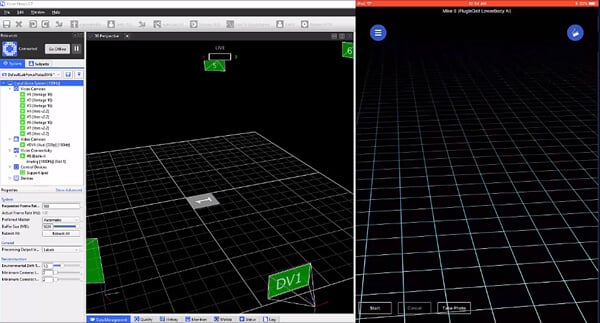
System control software lets an operator configure and run a motion capture system—calibrating cameras, checking coverage, adjusting settings, and starting captures—without being tied to the capture PC. On larger setups, this matters because problems are usually spotted out in the volume, not at the desk.
Vicon Control connects wirelessly to Vicon Tracker, Shōgun, and Nexus, streaming camera data to a phone or tablet. From the device, an operator can optimize the system, run calibration, and capture trials, so one person can set up and adjust on the fly rather than walking back to the PC between changes.
Yes, within the capture space. Control connects wirelessly to the system, letting you view live camera data, AutoNumber cameras, enable or disable Tap to Select, and adjust video camera parameters, including calibration mode, shutter duration, and threshold. It works with Valkyrie, Vantage, Vero, Vero X, Vertex, Bonita, and T-Series cameras.
Yes. Vicon Control is free to download for both iOS and Android from the App Store and Google Play. It requires a compatible device and Vicon Tracker 3.1, Shōgun 1.0, or Nexus 2.2 or later on the capture PC.
Vicon Control covers video streaming from Vue and FLIR cameras, camera AutoNumbering, Tap to Select toggling, and video parameter adjustment, all available across supported software. Connected to Nexus, it adds trial photos and videos taken on your device, trial tags, trial type selection, and post-capture pipeline feedback.
Vicon Control is free to download and works beautifully with Valkyrie, Vantage, Vero, Vero X, Vertex, Bonita and T-Series. Requires Tracker 3.1, Shōgun 1.0, Blade 3.2 or Nexus 2.2 and a compatible iOS or Android device.
We support the current iOS version, and the android OS 11 & 12.
| Current release version | Windows 11 | Windows 10 | Windows 7 | Linux | OSX |
| Shōgun 1.11 | 64 bit | 64 bit | x | x | x |
| Nexus 2.16 | 64 bit | 64 bit | x | x | x |
| Evoke 1.7.0 | 64 bit | 64 bit | x | x | x |
| Tracker 4.1.0 | 64 bit | 64 bit | x | x | x |
| Polygon 4.4.6 | 64 bit | 64 bit | x | x | x |
| Capture.U Desktop 1.3.1 | 64 bit | 64 bit | x | x | 10.12 |
| CaraLive 1.3.0 | 64 bit | 64 bit | 64 bit * | x | x |
| CaraPost 1.2.0 | 64 bit | 64 bit | 64 bit* | x | x |
| Pegasus 1.2.2 | 64 bit | 64 bit | 64 bit* | x | x |
| ProCalc 1.6.1 | 64 bit | 64 bit | x | x | x |
| ProEclipse 1.5.0 | 64 bit | 64 bit | x | x | x |
| DataStream SDK 1.12.0 | 64 bit | 64 bit | x | 64 bit | 10.11 |
| Bodybuilder 3.6.4 | 64 bit | 64 bit | x | x | x |
| Nexus Insight 1.0.0 | 64 bit | 64 bit | x | x | x |
Please do note:
1. Open the Network and Sharing Center and navigate to Change Adapter Settings. Vicon Vantage/Vero cameras are designated to one port. For each Vue (or Bonita Video) camera connected, there will be additional network port used.
2. Right click on the proper port and go into the Properties. The Local Area Connection Properties window will open. Make sure only Internet Protocol Version 4 (TCP/IPv4) is selected.
3. Select Internet Protocol Version 4 (TCP/IPv4) from the list and select Properties to assign the proper IP address.
a .Vantage/Vero cameras will have the following IP Address: 192.168.10.1 and Subnet Mask of: 255.255.255.0
b. The first VUE camera will have the following IP Address: 192.168.10.2 and Subnet Mask of 255.255.255.0
c. Any additional VUE cameras the last IP value is incrementally increased by one. For example, the second VUE camera will be 192.168.10.3.
Select OK to close out of the Internet Protocol Version 4 (TCP/IPv4) Properties. And OK again to close out of the Local Area Connection Properties. This will make sure all changes have been saved.
4. Feel free to rename the network port so it is easily identifiable. Such as ViconMX, VUE1 or VUE2
For further assistance please refer to the Configuring Ports section of the PCSetupforViconSystems.pdf found in Downloads > Documentation
Vicon Control _1.4.0 - App Store
Vicon Control _1.4.0 - Google Play
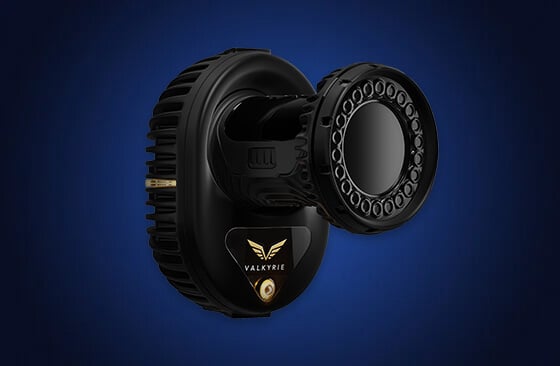
Valkyrie is the most powerful motion capture camera ever brought to market, offered with four different specs with four different focuses: resolution, speed, value, and strobeless.
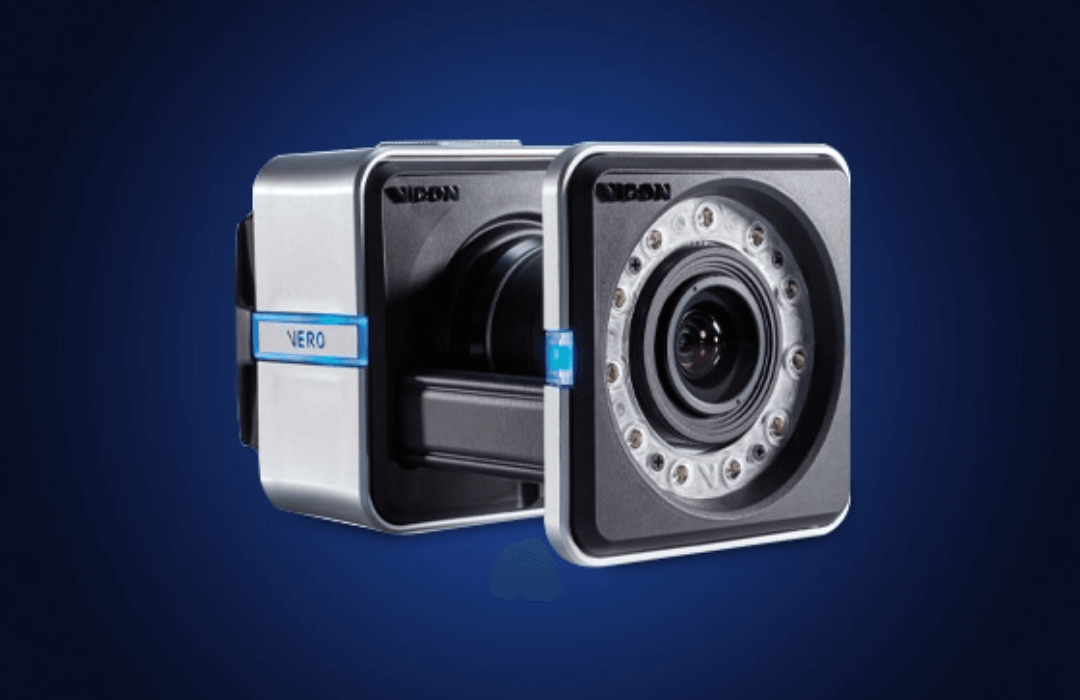
With the best resolution/speed/price offering on the market, Vicon Vero is the latest optical camera from Vicon. Building on the success of Vantage, Vero combined market-leading resolution and speed at an unrivaled price point. Like its bigger brother, Vantage, Vero has on-board sensors that monitor camera position and temperature to ensure optimal performance at all times.
Vicon are here to support you on your Motion Capture journey. We’re happy to provide more information, answer questions and help you find the solution you need. Get in touch with our experts today.